Opening a Secure Email from BioScript Solutions
Some emails from BioScript are sent securely to protect your privacy.
Follow the steps below to open and read your secure email.
Step 1: Open the email and click Read.
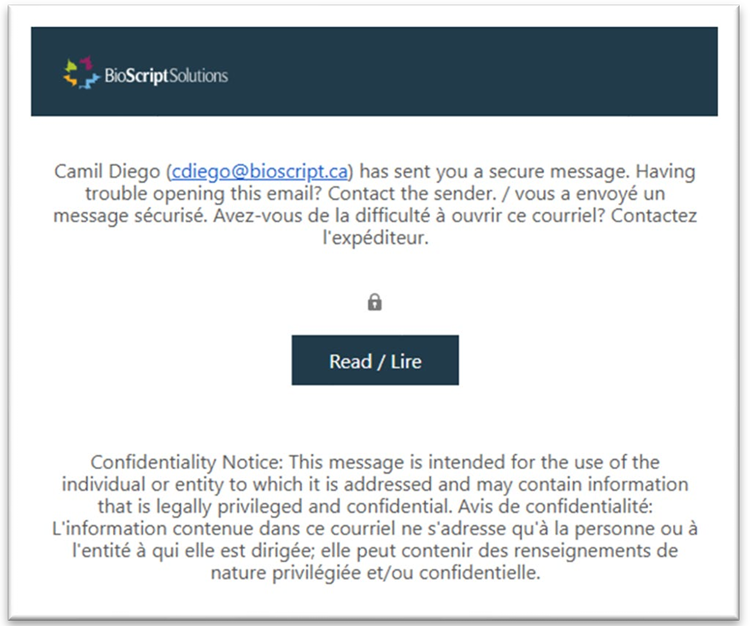
Step 2: Choose how you want to sign in.
You may see two ways to open your message:
- Option 1: Sign in with an email account
- Option 2: Sign in with a one-time passcode
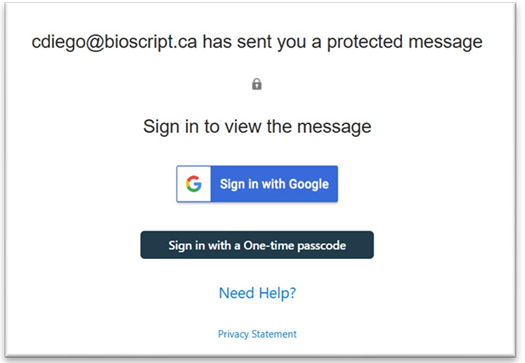
If you are already signed in to a Microsoft 365 account (such as Outlook, Hotmail, or a work or school account), the secure message may open automatically.
If it does not, choose one of the options below.
Option 1: Sign in with an email account
(such as Google, Yahoo Mail, or another supported provider)
1. Click the Sign In button.
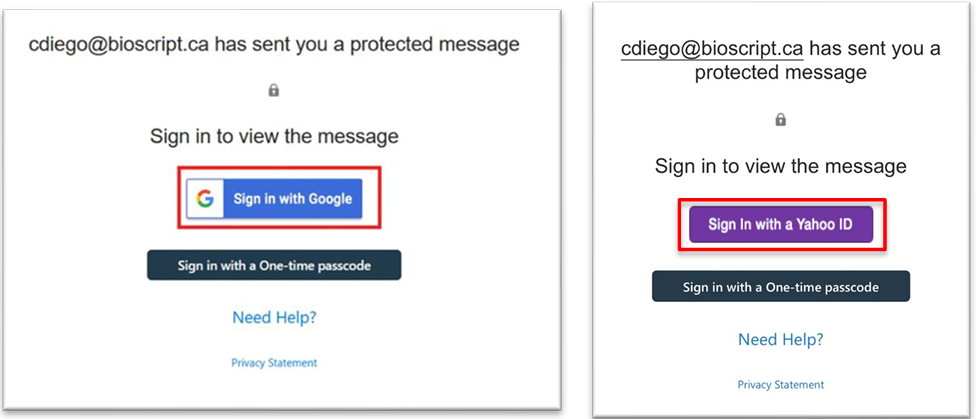
2. Select your email account if prompted.
3. Click Continue.
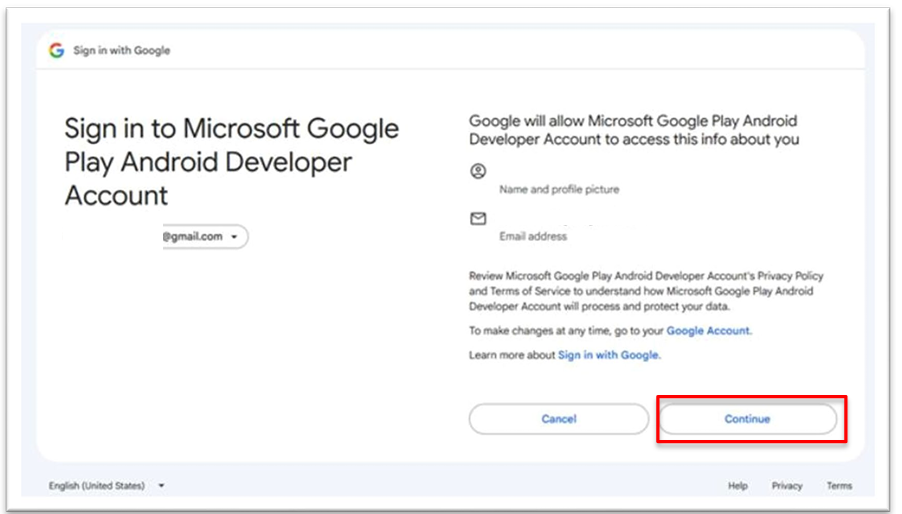
4. Your secure message will open. You can read and reply to it as needed.
Option 2: Sign in with a one-time passcode
1. Click Sign in with a one-time passcode.
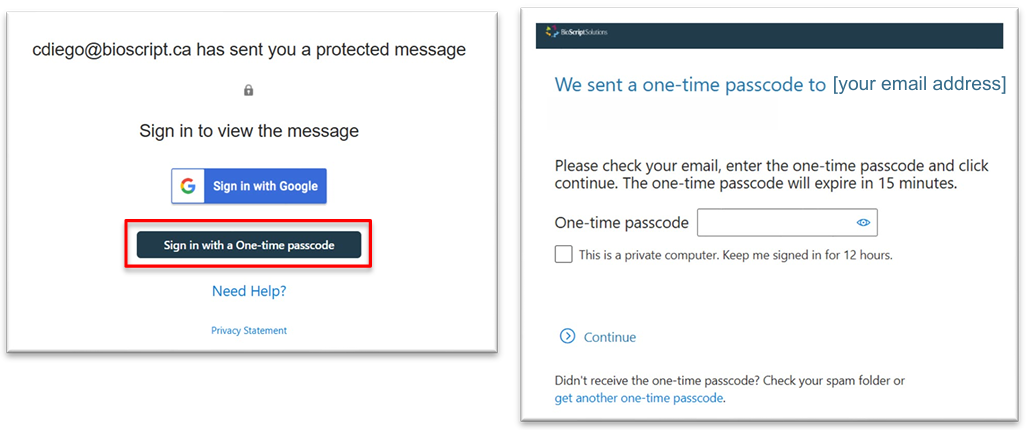
2. Leave the page open.
3. Return to your email inbox.
4. Look for a new email with the subject line “Your one-time passcode to view the message”.
5. Open the email and copy or write down the passcode.
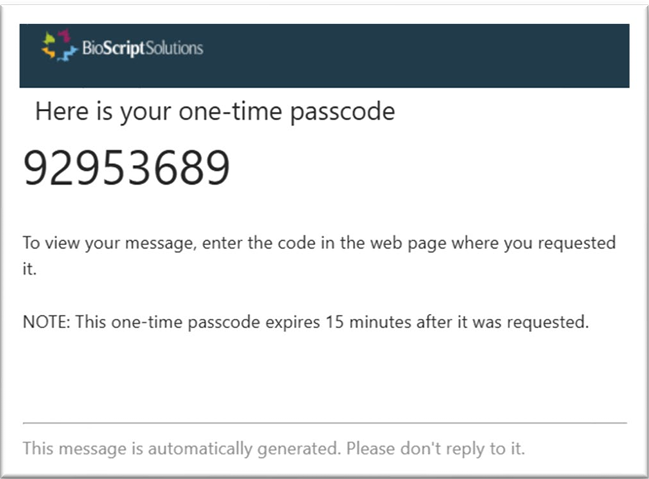
6. Return to the passcode page, enter the code, and click Continue.
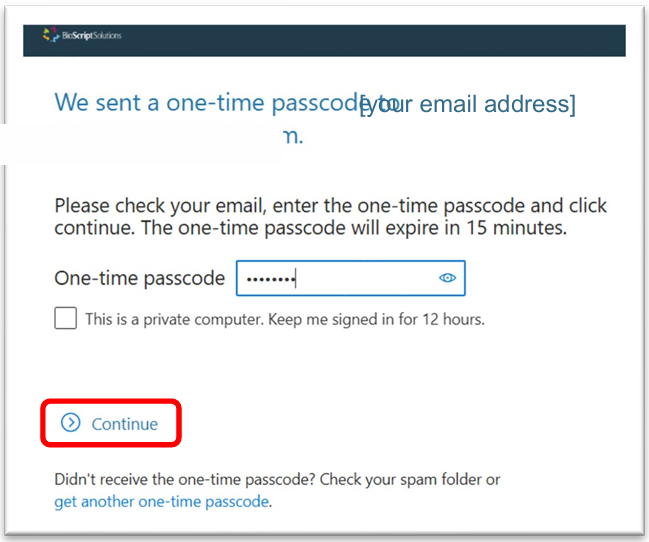
Your message will open. You can read and reply to it as needed.
Need Help?
- Wait a few moments for the passcode email to arrive.
- Check your junk or spam folder.
- Make sure you entered the passcode correctly.
- Request a new passcode if the original one has expired.
If you still cannot open the message, contact the person who sent you the secure email.